Explain the main visual change you want, such as a new environment, light, wardrobe, styling, or composition. Then identify the gesture, crop, silhouette, subject emphasis, or other quality that should remain important. Avoid combining several unrelated transformations in the same first test.
Change the image while keeping the intention clear.
Image to Image starts from an authorized source and a focused editing prompt. Describe the transformation you want, the qualities that remain visually important, and the composition the new private image should preserve or intentionally rethink without implying exact source reproduction.
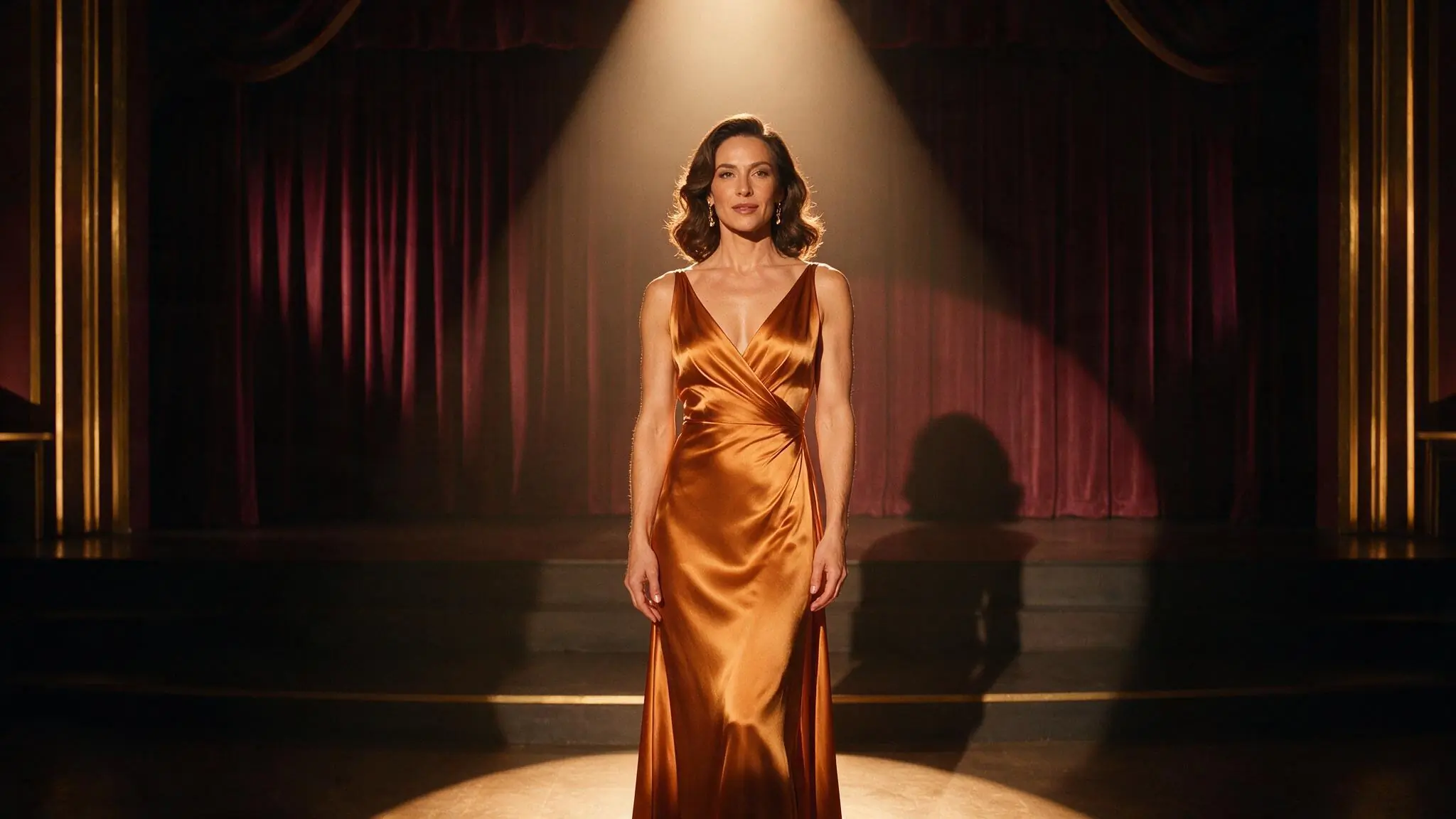
Name the change and the constraint
An editing brief is easier to evaluate when it distinguishes what should change from what should remain visually important. Keep the main transformation early, identify the composition constraint, and use the live model controls only when they support that decision.
- 01
Begin with an authorized source
Use an image you created or have permission to process. Review the crop, subject, and visual hierarchy before requesting a transformation.
- 02
State what changes and what matters
Describe the new styling, environment, light, or composition, then identify the visual intention the edited result should retain.
- 03
Review the result before continuing
Choose from the live image settings and Credit estimate. A completed saved image can then become a source for Image to Video.
Three edits with a named change and constraint
Each Image to Image example separates one requested change from one visual constraint. Compare wardrobe, environment, and lighting edits while keeping composition or gesture explicit. These illustrative briefs demonstrate prompt structure and do not guarantee exact preservation.
Swipe horizontally to explore all three examples.
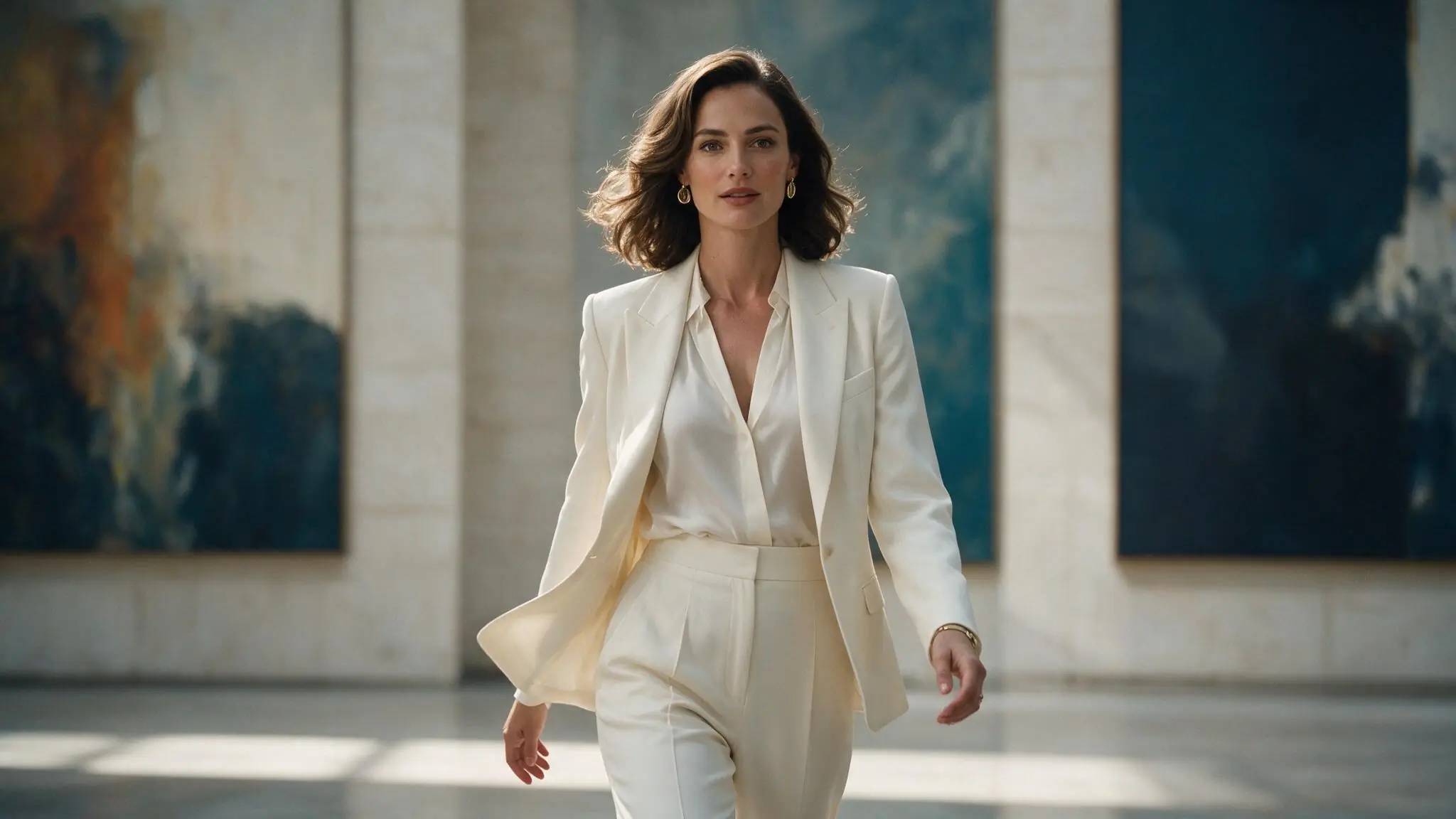
Change the wardrobe, keep the portrait
PromptReplace the ivory suit with a deep red tailored jacket; preserve the centered medium portrait, adult subject, gallery scale, and soft daylight.
The transformation and the composition constraint are stated separately.
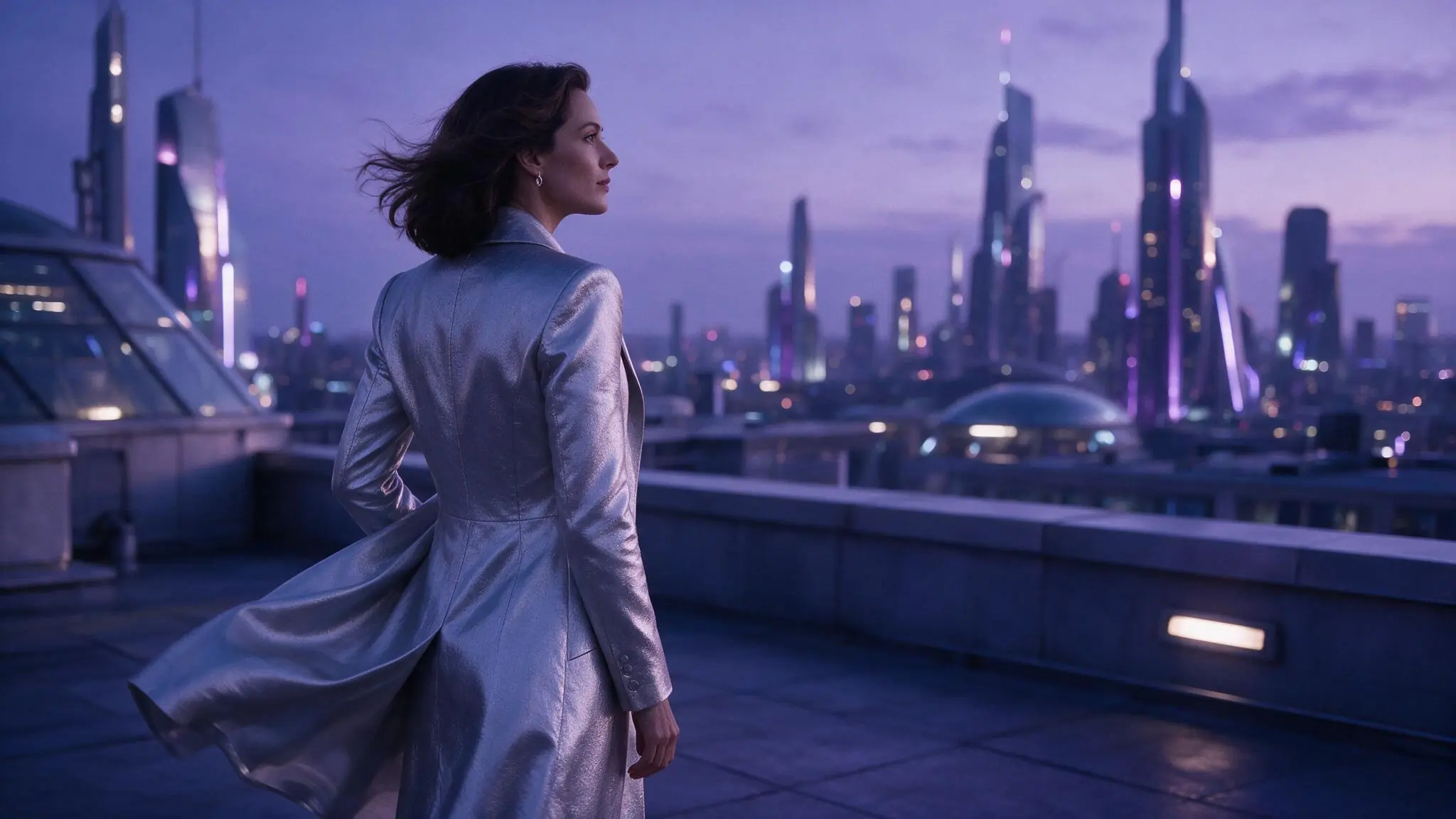
Change the environment, keep the silhouette
PromptMove the scene from a theater to a cool rooftop at night; preserve the central back-facing silhouette and dramatic negative space.
A named silhouette constraint keeps the visual intention explicit without promising exact preservation.
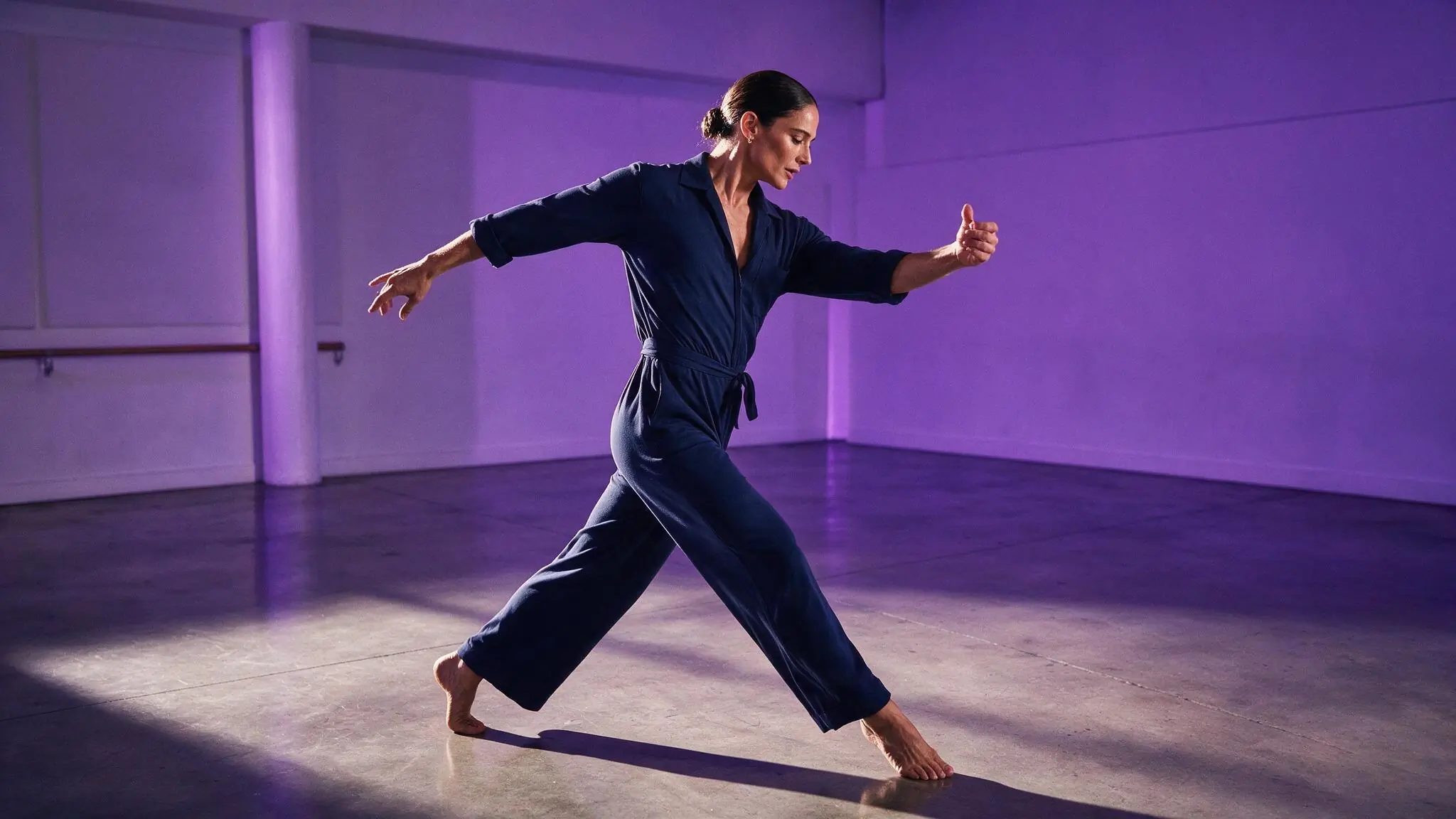
Change the light, keep the gesture
PromptShift the rehearsal room from violet to warm amber practical light; preserve the adult dancer's open gesture and full-body framing.
The prompt changes one visual system while naming the gesture that matters.
Image to Image settings for the edit
Available editing settings should support one intentional transformation rather than replace the source with unrelated complexity. Keep framing stable for comparison tests, choose an available model around the edit, and review the live Credit estimate before submitting.
| Goal | Focus on | Why it helps |
|---|---|---|
| Protect the existing composition | Framing close to the authorized source | A similar canvas keeps the requested edit focused on the change instead of a new crop. |
| Change the environment | The destination setting and light | Name the new visual world while keeping the subject and composition constraints explicit. |
| Prepare the result for motion | A clear subject and readable silhouette | A deliberate edited frame can become an easier authorized source for a later video setup. |
| Compare editing directions | Keep model and framing consistent | Changing one prompt decision at a time makes the transformation easier to assess. |
Improve a weak image edit
When a generated result misses the edit, separate the requested change from the qualities that should remain important. Keep the model and framing consistent while revising one transformation at a time, then compare the new result with the authorized source.
- The source changes too much
- Reduce the number of edits and explicitly name the composition, gesture, or visual anchor to retain.
- The requested edit is barely visible
- Move the main transformation to the start of the prompt and remove lower-priority styling instructions.
- A detail is not preserved exactly
- Treat the result as a new generation and review it carefully; exact source preservation is not guaranteed.
- Successive edits feel inconsistent
- Return to the strongest source and request one consolidated change instead of stacking many transformations.
Image to Image questions
Practical answers about live settings, Credits, account access, and consent-first creation.
No exact preservation is guaranteed. The selected model creates a new result from the authorized source and editing prompt rather than changing individual pixels deterministically. Review faces, hands, wardrobe, background, crop, and other important details before saving or using the output in another workflow.
Begin with the transformation and source requirements. Compare live catalog entries that accept the authorized input and offer the framing or supported controls needed for the edit. Keep the same setup while testing prompt revisions, and confirm the current Credit estimate before submitting each request.
Successive prompts may stack conflicting environments, colors, materials, or composition changes until the original visual intention becomes unclear. Return to the strongest authorized source, combine only the essential edit instructions, and state one constraint that should remain important in the new generation.
You can inspect the generator and setup while signed out. Submission requires an authenticated account. Return to the same route after signing in.
The live Workspace shows estimated Credits for the selected model and settings before submission. Change either to see the current estimate. Catalog availability and Credit requirements can change.
A precise edit begins with a precise visual decision.
For Image to Image, choose an authorized source, state the intended change, and review the live image setup above.